Linear, Tactile or Clicky? What's Really Inside Your Gaming Keyboard
How mechanical key switches work, what the Cherry MX colours mean, and why magnetic switches with Rapid Trigger are changing competitive gaming. With interactive diagrams you can press.
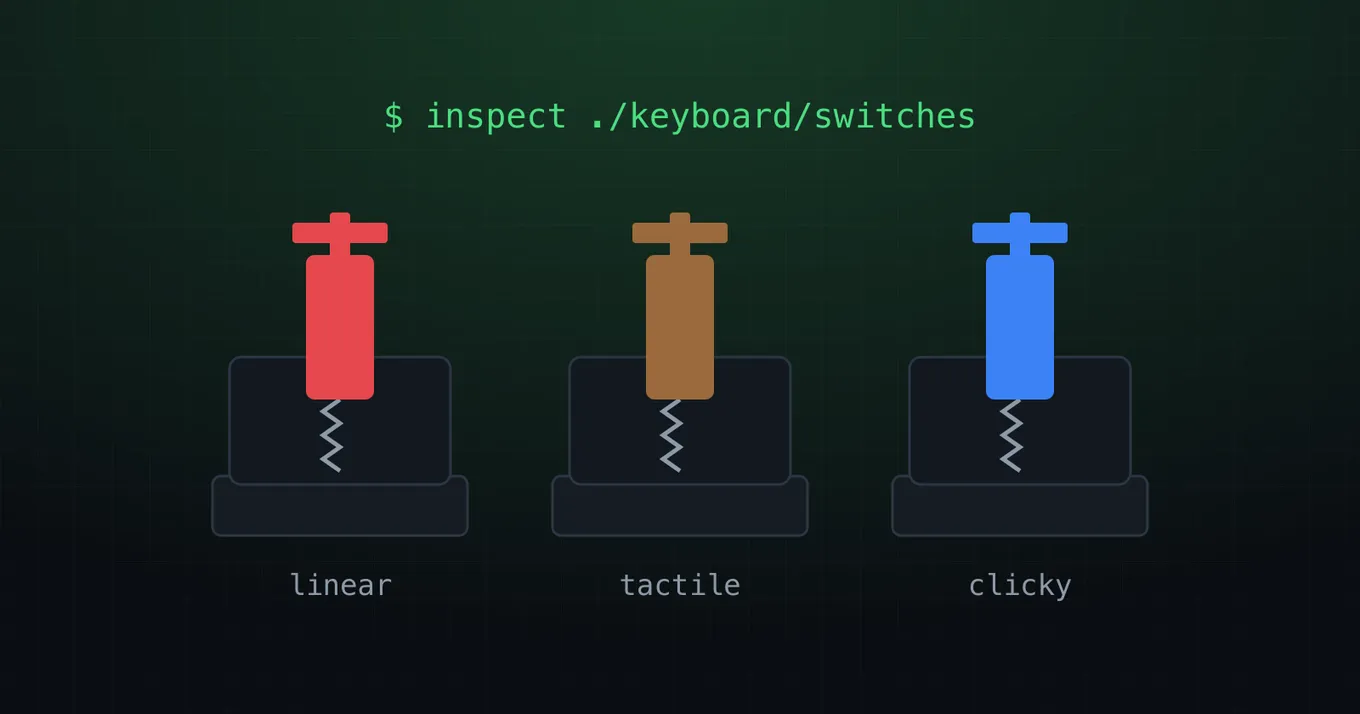
Every key on a mechanical keyboard sits on its own tiny switch. That switch decides how heavy the key feels, how quickly it registers and how loud it is. Once you know what’s inside, choosing a keyboard, or understanding the one you already have, gets much easier.
Anatomy of a switch
Most gaming keyboards use switches based on Cherry’s MX design. It debuted with the MX Black in 1983 and became the industry standard. Five parts do all the work:
- Keycap: the part you touch. It clips onto the stem’s cross-shaped top, which is why MX-style keycaps fit keyboards from many brands.
- Stem: slides down inside the housing. Its shape decides how the switch feels.
- Spring: resists your finger and pushes the key back up.
- Contacts: two gold-plated metal leaves. A leg on the stem holds them apart until the actuation point, then they touch and the keyboard registers the press.
- Housing: holds everything together and sits on the PCB, the keyboard’s circuit board.
Notice that the key registers roughly halfway down. Everything after the actuation point is extra travel until the key bottoms out.
The three families
The graph next to each diagram shows how much force your finger needs at every point of the travel. That curve is exactly what you feel.
Linear: smooth all the way
Linear switches have a straight stem leg, so the force simply rises with the spring. There’s no bump and no click, just a smooth, consistent press that’s easy to tap repeatedly. That’s why they’re the default choice for fast games.
- MX Red: light (45 cN), the classic gaming switch.
- MX Black: same feel with a heavier spring (60 cN), so fewer accidental presses.
- MX Speed Silver: registers after only 1.2 mm instead of 2 mm.
- MX Silent Red: a Red with dampers that soften the impact at the bottom and the top.
Tactile: a bump you can feel
A tactile switch adds a small bump to the stem leg. Right before the actuation point you feel a short rise in resistance that tells your finger “registered” without having to bottom out. MX Brown (55 cN) is the all-rounder: comfortable for typing during the day and gaming at night, without waking anyone up.
Clicky: a bump and a click
Clicky switches have a separate click jacket around the stem. As you press, it snaps down and strikes the housing, producing the sharp click and a strong bump. The jacket only resets near the top of the stroke, which makes very fast repeated presses harder. MX Blue (60 cN) and the stiffer MX Green (80 cN) are loved by typists, but they’re rarely the best pick for gaming, or for your teammates on voice chat.
Side by side
| Switch | Type | Force (cN) | Actuation (mm) | Travel (mm) | Life (presses) | Best for |
|---|---|---|---|---|---|---|
| MX Red | Linear | 45 | 2.0 | 4.0 | 100M | Fast gaming |
| MX Black | Linear | 60 | 2.0 | 4.0 | 100M | Gaming, heavier feel |
| MX Speed Silver | Linear | 45 | 1.2 | 3.4 | 100M | Competitive gaming |
| MX Silent Red | Linear | 45 | 1.9 | 3.7 | 50M | Quiet setups |
| MX Brown | Tactile | 55 | 2.0 | 4.0 | 100M | All-round |
| MX Blue | Clicky | 60 | 2.2 | 4.0 | 50M | Typing |
| MX Green | Clicky | 80 | 2.2 | 4.0 | 50M | Typing, heavy feel |
Force is measured in centinewtons: 1 cN is roughly the weight of 1 gram. Cherry also makes low-profile versions for slim keyboards and gaming laptops, with as little as 1.8 mm of total travel.
Beyond metal contacts: magnetic switches
The newest gaming keyboards drop the metal contacts entirely. A magnet in the stem and a Hall effect sensor on the PCB measure the key’s exact position at all times, instead of just “on” or “off”. That unlocks two things a classic switch can’t do:
- Adjustable actuation: you choose where the key registers, often anywhere between 0.1 mm and 4 mm, even per key.
- Rapid Trigger: the key releases as soon as it starts moving up and fires again as soon as it moves down, wherever it is in the stroke.
The demo below simulates a player jittering a key without fully lifting it, like counter-strafing in a shooter:
standard: 0 pressesrapid trigger: 0 presses
Optical switches are a third approach: the stem interrupts a beam of light instead of closing metal contacts. They’re fast and very durable, but behave like a classic switch, with one fixed actuation point.
Which one should you pick?
- Competitive shooters: magnetic switches with Rapid Trigger, or a light linear like Red or Speed Silver.
- Gaming and typing: tactile (Brown) or a heavier linear (Black).
- Shared room or streaming: Silent Red.
- Mostly typing, and you love the sound: clicky (Blue or Green).
Most switches are rated for 50 to 100 million presses, so whichever you choose will probably outlive the rest of your setup.
Specifications: Cherry, as compiled in Das Keyboard’s Cherry MX guide. The diagrams and force curves are simplified illustrations made for this article.